Integrating TWINT into Your Invoices
Factura makes it simple to integrate TWINT, Switzerland's favorite mobile payment method, directly into your invoices. Follow the instructions below to set up your TWINT payment link.
Requirements
Before you can add TWINT to your invoices, you must:
- Have an active account on the TWINT Business Portal.
- Have already configured your payment details (IBAN) in Factura. Follow the QR Bill setup guide if you haven't done this yet.
Creating a TWINT Business Account
You can register for a TWINT business account directly on their merchant portal. Registration is free and available to all businesses, whether you are registered in the commercial register or not.
Adding Your Business to TWINT
Once registered as a merchant, create your TWINT QR code by navigating to the "Stores" section and adding a store in the category "Payment link / QR code for mailing":
- Select your industry.
- Enter your company's contact details.
- You can add your company logo; it will be displayed when your clients scan your QR code.
- Specify the bank account where TWINT should deposit your funds.
- CRITICAL STEP: When choosing fields for the client to fill out, you must set the "Payment purpose" (motif du paiement) field to "Mandatory" (obligatoire). This allows Factura to automatically pre-fill the invoice number for you. You can enable other fields if you like, but they will need to be filled manually by your clients.
- Enter the email address where you want to receive payment notifications from TWINT.
Adding Your TWINT Link to Factura
TWINT Portal
Once your payment link is created in the TWINT portal, copy it using the copy button on the right to ensure the entire URL is captured:
Factura
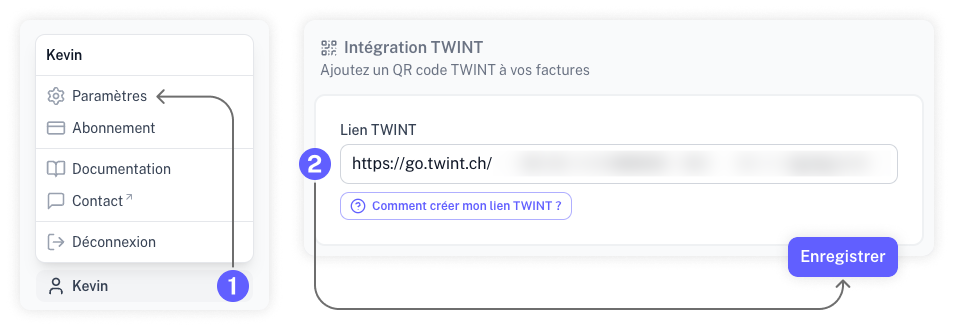
- Go to the Settings in your Factura account.
- Paste the URL into the "TWINT Link" field within the "TWINT Integration" section.
Once configured, a new QR code will be automatically added to your PDF invoices, allowing your clients to pay instantly via TWINT! You will receive an email notification from TWINT for every successful payment.